
Best for Scrapebox
Residential proxies
from $0.27/GB
A rotating residential port gives a new residential IP on each request, so no single IP collects enough queries for Google to block it.
Scrapebox works on
Google needs a recent Scrapebox build
Since January 2025 Google shows search results only to clients that run JavaScript (Google confirmed the change to TechCrunch on 17 January 2025). Older Scrapebox builds get few or no Google results, so run the update tool before you blame the proxies.
Threads set the load per IP
Each thread is one open connection. With 10 static proxies and 50 harvester threads, every IP sends about five Google queries at once. That is enough to get it blocked.
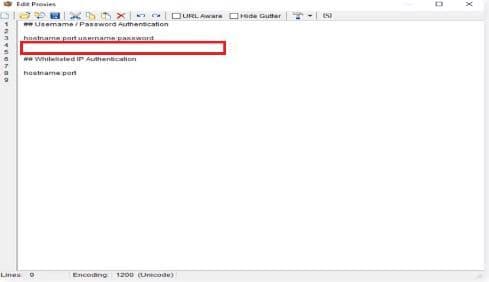
One proxy per line, pasted in Use Proxies > Edit
Paste each proxy as HOST:PORT:USERNAME:PASSWORD, or HOST:PORT for IP-whitelisted ones. Keep SOCKS5 ports in their own list so they can be marked as SOCKS.
Scrapebox reads one proxy per line. It treats pasted lines as HTTP unless they are marked as SOCKS, and the Proxy Manager test can detect the type for you.
| Name | Works In | Auth | Blocking Resistance | Best For | Where To Get |
|---|---|---|---|---|---|
| HTTP/HTTPS with login | Harvester, proxy tester and the other modules that have a Use Proxies option | Username and password in the line: HOST:PORT:USERNAME:PASSWORD | Set by the IP type (residential, ISP or datacenter) | Most paid proxies | Geonode residential, ISP or datacenter proxies |
| HTTP/HTTPS with IP whitelist | Same modules; the proxy must allow the public IP of the PC running Scrapebox | None in the line: HOST:PORT only | Same as HTTP with login | A VPS or server with a fixed public IP | Providers that offer IP whitelisting |
| SOCKS | Any module with Use Proxies, once the line is marked as SOCKS | Same line format; whitelisted SOCKS ports need no login | Same as HTTP | Ports that only offer SOCKS5 | Geonode residential SOCKS5 ports; Geonode free list |
Most Scrapebox work sends automated queries to Google, which its terms forbid, and Google blocks IPs that send too many. A proxy spreads the queries over more IPs but does not make the harvesting allowed.
from $0.27/GB
A rotating residential port gives a new residential IP on each request, so no single IP collects enough queries for Google to block it.
from $1.25/IP
ISP IPs stay the same, which suits metrics checks and posting from set addresses, but each one wears out quickly under heavy Google harvesting.
from $0.14/GB
Datacenter IPs are fast and cost less per GB. They handle link checking, page scanning and email scraping on sites without bot protection, but Google flags these ranges first.
Free
Public proxies, including the ones the built-in Proxy Harvester collects, die within hours and are usually banned on Google already. Use them to check that your settings and filters work.
You need the proxy host, port, username and password from your provider's dashboard, and the protocol of each port.
Put your proxies in one list, one per line, as HOST:PORT:USERNAME:PASSWORD.
In the Select Harvester and Proxies panel of the main window, tick Use Proxies.
Click Edit to open the proxy editor.
Paste the list. For IP-whitelisted proxies, paste HOST:PORT only.
Click Save. The proxies now appear in the list.
Select all proxies, click Modify and choose Mark all Proxies as Non-Socks proxies.
Check detailed instructions on our blog:
Read the blog postClick Start Harvesting. The harvester window shows Proxies enabled when Scrapebox is using the list.
Harvest five keywords from Google and look at the results count and the error column for each keyword.
For a static list, open the Proxy Manager and test all proxies. Working ones turn green, failed ones red.
Paste a proxy into the Geonode proxy checker to see its exit IP and country outside Scrapebox.
Untick Use Proxies in the Select Harvester and Proxies panel. Scrapebox then connects from your own IP and keeps the list.
To delete the list, open the proxy editor with Edit, clear it and click Save.