
Best for Google Chrome
Residential proxies
from $0.27/GB
Sites see a home connection in the country you pick, and sticky sessions up to 24 hours keep one IP while you stay logged in.
Google Chrome works on
Where Chrome's proxy setting is
Chrome has no proxy form of its own: Settings > System > Open your computer's proxy settings opens the Windows or macOS proxy screen. For a Chrome-only proxy, use --proxy-server or an extension.
Incognito windows
The system proxy also applies in Incognito. An extension proxy applies there only after you turn on Allow in Incognito on the extension's details page.
Work computers
On a managed device your IT team can set the proxy by policy. Chrome then ignores the system settings and anything you change.
A system proxy also covers other apps that read the Windows or macOS settings, such as Edge and Safari. A flag or an extension changes Chrome only.
| Name | Works In | Auth | Blocking Resistance | Best For | Where To Get |
|---|---|---|---|---|---|
| System proxy (Windows, macOS or Linux settings) | Chrome on Windows, macOS and Linux, plus other apps that follow the system proxy | HTTP/HTTPS: Chrome Sign in dialog | Set by the IP type. Sites still see your cookies and Google sign-in | One proxy for the whole computer | Geonode residential, ISP or datacenter proxies (HTTP endpoint); Geonode free list |
| --proxy-server command-line flag | Desktop Chrome; overrides the system proxy for that Chrome process only | HTTP/HTTPS: Sign in dialog; SOCKS without login only | Same as the IP type; a fresh --user-data-dir profile starts with no cookies | A second Chrome with its own IP next to your normal browser | Geonode residential, ISP or datacenter proxies; Geonode free list |
| Proxy extension (Geonode extension, FoxyProxy) | Desktop Chrome, per profile; the operating system and other apps are not affected | Saves the HTTP proxy login for you | Same as the IP type. If a site blocks the proxy, one click turns it off | Switching between proxies or countries without opening system settings | Geonode browser extension (free with a Geonode account) or FoxyProxy from the Chrome Web Store |
Chrome works with all four. The sites you open decide which one gets through.
from $0.27/GB
Sites see a home connection in the country you pick, and sticky sessions up to 24 hours keep one IP while you stay logged in.
from $1.25/IP
One fixed IP, so Google, shops and social sites see the same address every time you sign in.
from $0.14/GB
Cheap per GB, but Google Search and many shops show CAPTCHAs or an unusual traffic page to datacenter ranges more often.
Free
Whoever runs a free proxy sees which sites you open, so use one to test the setup and never to sign in to an account.
Copy the host, port, proxy username and proxy password from your provider's dashboard before you start.
In Chrome, click the three-dot menu, then Settings.
Click System, then Open your computer's proxy settings. Windows opens Network & internet > Proxy.
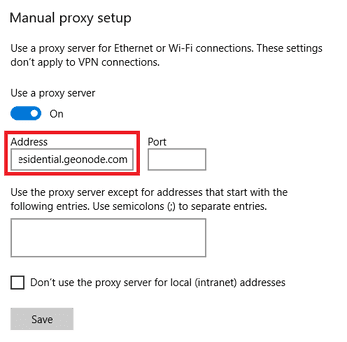
Under Manual proxy setup, next to Use a proxy server, click Set up.
Turn on Use a proxy server.
Enter the host in Proxy IP address and the port in Port.
Optionally tick Don't use the proxy server for local (intranet) addresses.
Click Save.
Open any site in Chrome. When the Sign in dialog appears, enter the proxy username and password.
Check detailed instructions on our blog:
Read the blog postOpen geonode.com/what-is-my-ip in Chrome. You should see the proxy's IP and country, not your own.
Type chrome://net-internals/#proxy in the address bar. It lists the proxy settings Chrome actually applies and any proxies it has marked as bad.
Windows: go to Settings > Network & internet > Proxy, click Set up next to Use a proxy server, turn off Use a proxy server and click Save.
macOS: go to System Settings > Network, select the service, click Details > Proxies, turn off each proxy type and click OK.
Extension or flag: turn the extension off in chrome://extensions, or quit Chrome and start it again without --proxy-server.